
Login with Passkeys (Fingerprint / Face ID)
Passkeys let you sign in using your device’s built-in security — such as your fingerprint, Face ID, Windows Hello, or device PIN — without typing your password every time.
Passkeys are faster, easier, and more secure than traditional passwords.
Registering a Passkey
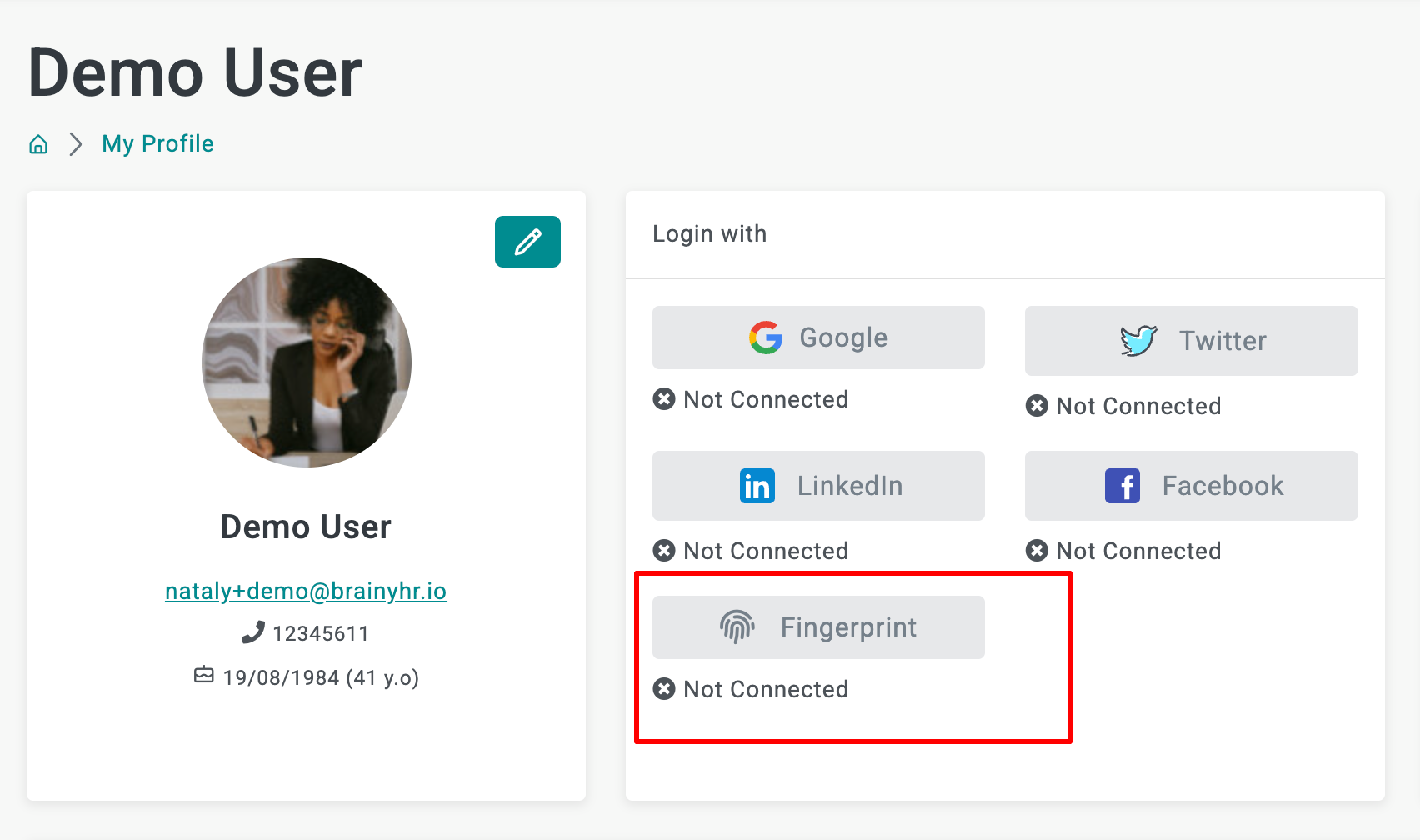
This only needs to be done once for each device.
- Go to your Profile page
Open your account profile page and locate the Fingerprint button in the Login with section. - Tap the Fingerprint button
Your browser will ask you to verify your identity using your device’s security method — fingerprint scanner, Face ID, Windows Hello, or device PIN. - Approve the security prompt
Follow the on-screen instructions shown by your device. A secure passkey will then be created and linked to your account. - Setup complete
The page will refresh to confirm the registration. You can now sign in using your fingerprint or biometric authentication on this device.
“The credentials creation was not completed. The authenticator was previously registered. Please remove the authenticator from your device and try again, or restore the authenticator here.”
This means your device already has a passkey registered for this account. You can either:
- Restore the existing passkey by confirming the prompt, or
- Remove the old passkey from your device settings and register again.
Logging In with a Passkey
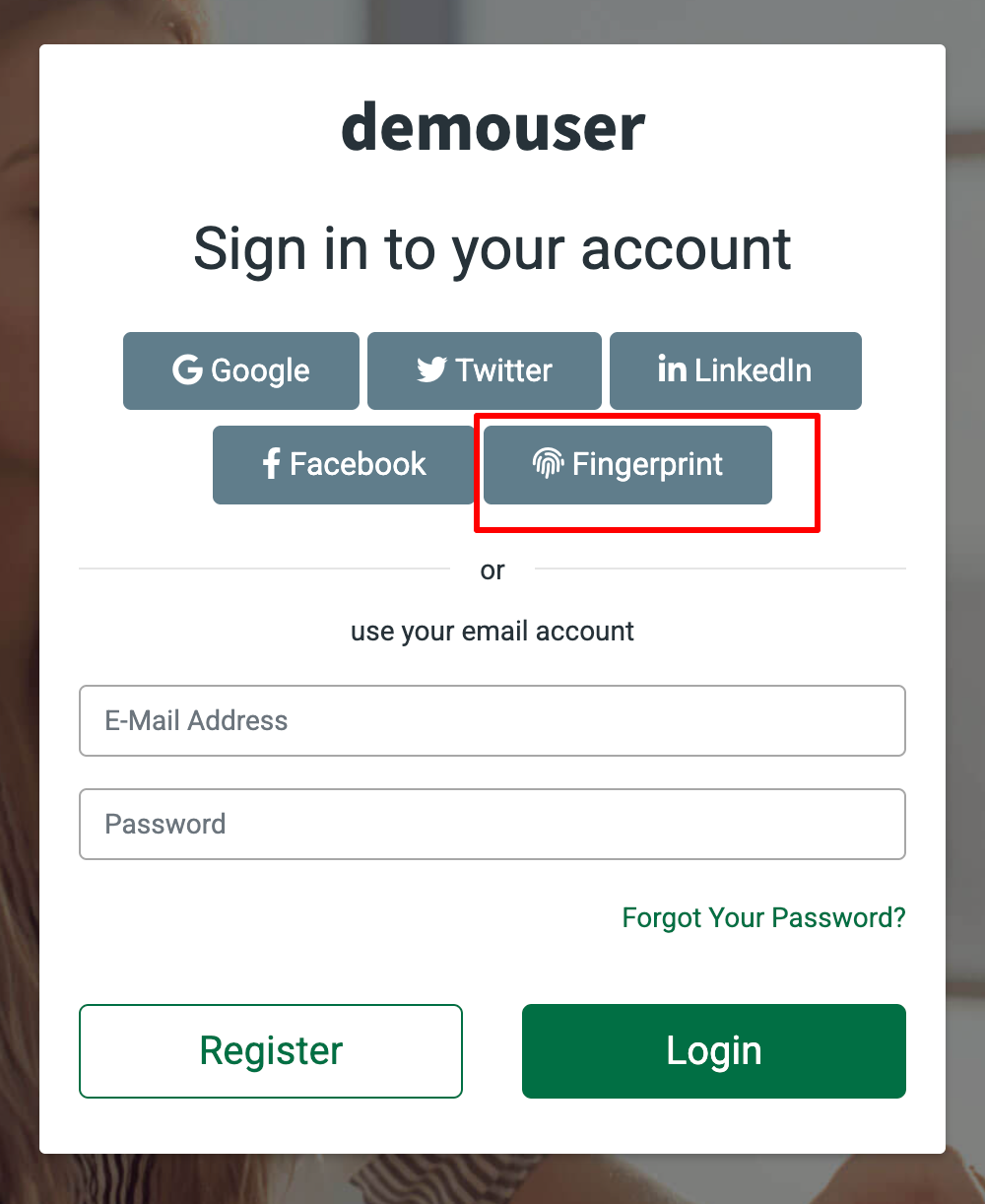
Once your passkey is registered, signing in becomes much faster.
- Open the Login page
Go to the login page as usual. You will see a Fingerprint button alongside the email and password fields. - Tap the Fingerprint button
Your device will display a security prompt. Verify using the same method you used during setup (fingerprint, Face ID, Windows Hello, or PIN). - You’re signed in
After successful verification, the page will reload and you will be logged in automatically — no password required.
Frequently Asked Questions
Does it work on mobile devices?
Yes. Passkeys work on most modern devices that support biometric authentication or PIN security, including iPhone, Android, Windows, and Mac devices.
Can I use my passkey on multiple devices?
Currently, each account supports one active passkey at a time. Registering a new device will replace the existing passkey.
To switch devices:
- Open your Profile page
- Remove the current passkey using the Unlink button
- Register a new passkey on the new device
Is it safe?
Yes. Your fingerprint or biometric data never leaves your device. Only a secure cryptographic key is shared with the server, and it can only be used from the device where it was created.
What happens if I lose my device?
You can still sign in using your email and password from any device. You can also remove registered passkeys from your Profile page using the Unlink button.
Having trouble signing in with your passkey?
If you're seeing an authorization error, your saved passkey may be outdated or corrupted. To fix this:
- Remove the passkey for this site from your device's password manager
- Come back and register a new passkey
If the issue persists, please contact support.